Showing posts with label Web Applications. Show all posts

Thursday, August 27, 2015

Some app substitutions for iPad apps to use on a Chromebook

Chromebooks - apps recommendations and substitutions


Many “apps” made for iOS and Android aren’t meant to be used as apps on a Chromebook, anymore than they would be on a Mac or Windows device. You can just use the website. Others have web apps and/or extensions.

  1. Google Maps web app
  2. Kindle - use website or Kindle Cloud Reader web app
  3. Stage - no direct alternative, but there are “whiteboarding apps”
  4. PS Express - Pixlr Editor or PicMonkey
  5. Dropbox - Dropbox Web App
  6. Educreations - (Lensoo) - go to Educreations website and login,
  7. Chatterpix - use Pixlr or PicMonkey (see #4)
  8. PhotoFun Animal - no direct alternative (doesn’t seem educational either)
  9. Wikipanion - just go to Wikipedia site
  10. QR Reader - use ScanQR
  11. Accelerated Reader (AR) - Renaissance Learning AR, Achieve3000 Mobile
  12. Adobe Reader - Acrobat Reader web app, Google Drive will also open PDF files
  13. Pages - use Google Docs
  14. Numbers - use Google Sheets
  15. Keynote - use Google Slides
  16. iMovie - use WeVideo
  17. iPhoto - use Pixlr or Pickmonkey (#4 above) for editing. Google Photos (part of Google Drive) can also be used to organize your photos and do basic editing.

More:


Remember to add these through the Admin Console as pushed or recommended apps for your users.(Scroll down to Force-Installed Apps and Extensions)



Thursday, May 7, 2015

Dell releases network appliance to provide Virtual Windows Desktops to Chromebooks


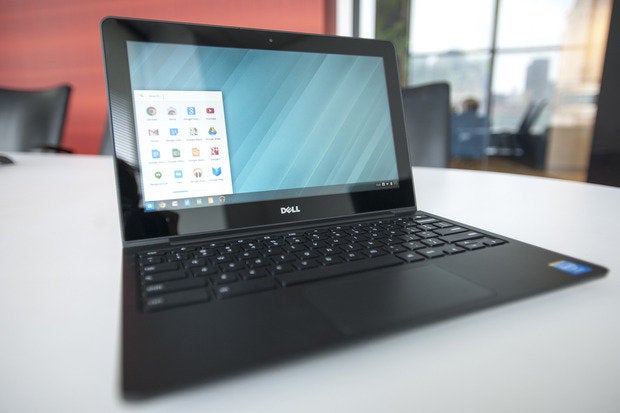
dell chromebook 11 march 2014

Chromebooks are amazing devices that are great for education. While they can do a lot, there are the occasional times when a user will need access to a Windows only application. Sometimes there are features or legacy apps that users need.

There are a variety of ways to allow this on a Chromebook: setting up Chrome Remote Desktop on a Windows desktop PC, or using server based systems such as VM Ware, Citrix and Ericom AccessNow to provide access.

My district uses Ericom AccessNow to provide access to Windows applications on Chromebooks. This includes running a virtual session of Internet Explorer for a few legacy systems that only run on IE. Simply login to the portal from any browser, and click on the application you want, and it launches and runs.

Dell has now entered the arena with the Dell Appliance for Wyse-vWorkspace product. It uses desktop virtualization to allow Chromebooks, and other devices, to access Windows desktop software. With this appliance, users can run Microsoft Windows Applications or a full Windows desktop through the Chromebooks browser. It can deliver Windows apps up to 350 devices and pricing is said to start at $180 per user for the hardware and license.

These solutions all cost money (except for Chrome Remote Desktop) but can save money in the long run by eliminating expensive Windows workstations (initial cost, support and upgrades, software deployment) with Chromebooks and Chromeboxes.


Related:

BYOD and Web Based Apps, Hosted Apps


What can you do on a Chromebook? Pretty much everything.


-

Wednesday, April 8, 2015

PicMonkey - web based image editing - great for Chromebooks

Application PicMonkey

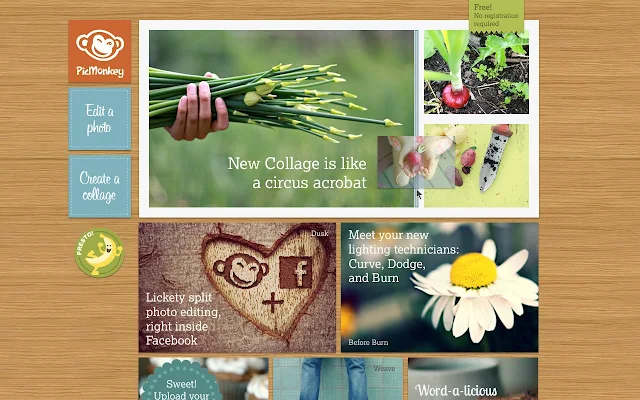
PicMonkey is a free, online photo editing service that has some great features and is a great tool for Chromebook users. PicMonkey is very easy to use. Simply upload or drag and drop a photo onto the site and edit away.

You can crop, rotate, add effects, add borders and text, and manipulate photos with some very powerful and useful editing tools, all online.

The Chrome app is also easy to use and has a ton of features, including Collage, Touch-Up, Teeth Whiten, Fonts, Effects, Filters, Frames, Textures, Stickers and more.

It's an excellent resource for photo editing on a Chromebook. They are also working on a mobile app.


Related:

Great, free Image editing sites and software

Two More Free Image Editing Resources


Thursday, March 19, 2015

Noodle releases list of 32 best free apps for Education


Featured Image
Noodle, a site that provides families with information about schools, tutors, summer camps, study abroad programs, and online learning tools, has just released a list of the 32 best, free apps for education. 

The list covers some apps that I've reviewed before, such as Edmodo, Prezi, Desmos, and Knowledge Graph, but also has some I've never covered. Each listing is set up with "What it is", "Who would love it", "Why it's good", and "Why it's relevant", and "Something you didn't know" providing a quick look at what the app does, the intended audience and how to use it.

The selections were evaluated based on a list of strict criteria, including:
Orientation toward high school or college students
User-friendliness
Design language strength
Ease of use
No-cost options

There are some great apps listed here. Take a look. 

Example of a listing:


Related:


-